Email Thread Chaos? 7 Mistakes You're Making (And How to Fix Them)
-
- What Is an Email Thread?
- #1: Not Enabling Email Threading
- #2: Writing Vague Subject Lines
- #3: Letting Email Threads Go Off-Topic
- #4: Keeping Threads Alive Way Too Long
- #5: The Reply-All Disaster
- #6: Sharing Sensitive Information in Email Communication
- #7: Not Collapsing Read Messages
- Your Email Thread Action Plan
- Stop Losing Time and Customers: Master Email Threads Today
You might not think your email threads are a problem—but small inefficiencies add up fast. Even if your inbox feels manageable, smarter thread management can save you hours every week and prevent the kind of miscommunication that costs you business.
Managing email threads shouldn’t be this hard. But between vague subject lines, endless reply-all chains, and conversations that drag on for months, your inbox becomes an unmanageable mess where important information disappears and customers, team members, and collaborators get frustrated.
The reality is simple: poor email thread management costs you time, money, and business opportunities. We’ve identified the seven most common mistakes killing your inbox productivity—and the quick fixes you can implement today to take back control.
What Is an Email Thread?
An email thread (also called a conversation thread) is a series of related email messages grouped together in your inbox. When you send an email and someone replies, all those messages get grouped into one line in your inbox—that’s a thread.

Email threading exists for three critical reasons:
- Reduce inbox clutter – Instead of 20 individual emails about “Q4 Budget Review,” you see one conversation with 20 messages inside
- Preserve context – You can see the entire conversation history without hunting through your inbox for previous messages
- Save time – No more scrolling endlessly to find that one reply from last Tuesday—it’s all in one place
What’s the difference between an email thread, email chain, and email string?
They’re all the same thing. Email thread, email chain, and email string are used interchangeably.
You may have heard people use “email chain” in corporate settings or “email string” in legal contexts, but they all describe the same concept: a series of related messages grouped together. Some people prefer “chain” because it suggests messages linked together, while others use “thread” because it implies a conversation flowing through multiple replies.
The terminology doesn’t matter—what matters is understanding how to manage these email conversations effectively, regardless of what you call them.
Now let’s tackle why your email threads are probably a mess—and how to fix them.
#1: Not Enabling Email Threading
If your inbox looks like a tornado hit it, there’s a good chance you haven’t enabled conversation view. While most email clients like Gmail, Outlook, and Apple Mail enable threading by default, the setting can be turned off—and you might not even realize it. You’re seeing every single reply as a separate email, scattered across dozens of pages, with no connection between them.
This isn’t just frustrating—it’s affecting your business.
Why This Hurts Your Business
Wasted time searching for messages. Without threading, finding that one reply from a customer, team member, or vendor two weeks ago means scrolling through hundreds of irrelevant emails. What should take five seconds now takes five minutes—do that 20 times a day, and you’ve lost over an hour just looking for emails.
Missed responses. When replies aren’t grouped together, they get buried. You think you’re waiting on a customer, but they actually responded yesterday—their email is sitting on page 3 of your inbox. By the time you find it, they’ve moved on to a competitor who responded within hours.
Unprofessional appearance. Ever had someone say “like I mentioned in my last email” and you have no idea what they’re talking about? You can’t quickly reference the whole conversation history, so you look unprepared or like you don’t care enough to read their messages.
Imagine a freelance consultant lost a major contract because they didn’t see a customer’s follow-up question buried in their inbox. The customer had replied with “Just one clarification before we move forward”—but without threading enabled, that reply sat unread for 3 days. The customer hired someone else who actually responded.
The Fix: Turn On Conversation View
When you enable the conversation view (also called “organize emails by thread”), your email client groups related messages together. Instead of 20 separate emails about “Q4 Budget Review,” you’ll see one line in your inbox showing how many messages are inside. Click to expand the full conversation.
It takes 30 seconds to enable. Here’s how:
Gmail
- Web: Settings (gear icon) → See all settings → General tab → Conversation view → On → Save Changes
- Mobile: Menu (three lines) → Settings → [Your account] → Conversation view → Toggle On
Outlook
- Desktop: View tab → Messages section → Check “Show as Conversations” → Choose “All mailboxes”
- Web: Settings (gear icon) → Search “conversation” → Toggle “Organize messages by conversation” to On
- Mobile: Profile icon → Settings (gear icon) → Conversation view → Toggle On
Apple Mail
- Mac: View menu → Organize by Conversation
- iPhone/iPad: Threading is automatic—no setting needed
SiteGround Email Users
- Webmail (Roundcube): Settings → Preferences → Displaying Messages → Enable “List messages in threads”
- Using Gmail/Outlook/Apple Mail: Follow the instructions above after adding your SiteGround account via IMAP
Email Threading: Features Comparison
All major email platforms support threading, but features vary:
| Feature | Gmail | Outlook | Apple Mail | SiteGround Webmail |
| Automatic Threading | Yes | Yes | Yes | Yes |
| Mobile Threading Support | Full support | Full support | Auto-enabled | Via app access |
| Conversation View Toggle | Easy on/off | Easy on/off | Menu toggle | Settings toggle |
| Shows Message Count | Number badge | Number indicator | Stack icon | Thread count |
| Expand/Collapse Individual Messages | Click to expand | Click to expand | Click to expand | Click to expand |
| Threading with Different Subject Lines | ⚠️ Limited | ⚠️ Limited | ❌ No | ❌ No |
| Search Within Thread | Built-in | Built-in | ⚠️ Manual scroll | ⚠️ Manual scroll |
| Mute Thread Option | Yes | Yes (Ignore) | ❌ No | ❌ No |
| Break Thread Apart | ❌ No | ⚠️ Via “Clean Up” | ❌ No | ❌ No |
| Best For | Power users, integrations | Corporate environments | Mac/iPhone users | Basic professional email |
The fundamentals are the same everywhere. Platform choice comes down to your existing workflow. Once you’ve got your email threads under control, the next step is reaching customers at scale. SiteGround’s free 6-day email marketing course teaches you how to build lists, craft campaigns, and measure results effectively.
#2: Writing Vague Subject Lines
“Re: Quick question” with 47 replies spanning three months. “Following up” containing messages about five different projects. “Checking in” that could mean literally anything.
Vague email subject lines don’t just look unprofessional—they make your email threads completely unsearchable. Information disappears into black holes where neither you, your customers, nor your team members can ever find it again.
Why This Hurts Your Business
Customers can’t find your emails later. When someone searches for that pricing discussion from last month, they look for “pricing” or your business name. But your thread is called “Re: Quick question”—so they can’t find it. Now they’re asking you to resend information you already provided.
You can’t find your own threads. It’s Friday afternoon. A customer asks about the order timeline you discussed two weeks ago. You’ve got 12 threads with them, half titled “Re: Following up.” You waste 15 minutes searching before giving up and rewriting everything from scratch.
Email threads become dumping grounds. The subject line says “Product Inquiry” but the thread now contains invoicing, shipping updates, a different order, and someone’s out-of-office reply. Good luck finding anything.
The Fix: Subject Line Formula for Business Emails
Use this formula for every business email:
[Customer/Project Name] – [Specific Topic]
That’s it. Specific enough to be searchable, brief enough to read on mobile.
For example, instead of “Quick question,” write “Acme Corp – Q4 Budget Approval.” Instead of “Following up,” write “Johnson Wedding – Final Photo Selection.”
The Searchability Test
- Bad subject line: “Question” – You’ll find this thread 20-30% of the time when searching
- Good subject line: “Riverside Development – Zoning Permit Status” – You’ll find this 90%+ of the time by searching “Riverside,” “zoning,” or “permit”
If you send 50 emails a week, good subject lines save you 3-5 hours per month in search time.
#3: Letting Email Threads Go Off-Topic
The thread started as “Q4 Marketing Budget Approval.” Now, 30 messages later, it contains discussions about the holiday party, a debate over which project management tool to use, someone’s restaurant recommendation, and oh yeah—buried somewhere in there—the actual budget approval.
Good luck finding that approval when you need to reference it in three months.
Why This Hurts Your Business
You can’t find important information later. Again, searchability becomes useless when a thread covers multiple topics. When you search for “marketing budget approval” in six months, you’ll find the thread—then spend 10 minutes scrolling through 30 messages about unrelated topics trying to locate the actual approval.
Team members get confused. A new team member joins the project and you send them “the thread with all the context.” They open it to find discussions jumping between three different topics with no clear structure. They can’t tell what’s current, what’s outdated, or what actually applies to their work.
Customer frustration builds. A customer says “I know we discussed the delivery date in our email thread.” You both start searching. The delivery date discussion is sandwiched between messages about invoice payment and a completely different topic. After five minutes of scrolling, they’re annoyed.
The Fix: Thread Discipline Best Practices
One email thread discusses one particular topic, period. If someone introduces a new topic in an existing thread, don’t reply to it there. Respond with: “Good question about [new topic]—starting a separate thread so we can keep these organized.” Then create the new thread.
When someone goes off-topic, redirect before the thread derails: “That’s a great point about [off-topic item]. Let’s discuss that separately so we can keep this thread focused on [original topic]. Starting a new thread now.”
Keep Threads Searchable
- Archive completed email threads immediately
- Use the subject line formula: [Customer/Project] – [Specific Topic]
- Search effectively: Gmail (from:email@example.com subject:budget), Outlook (use search filters), Apple Mail (search then use Filter)
- Weekly five-minute audit: Close threads over 15 messages, spin off-topic tangents into separate threads, archive completed threads, follow up on threads waiting on someone
#4: Keeping Threads Alive Way Too Long
You’ve got an email thread that started in February as “Project Kickoff Discussion.” It’s now September, and that same thread contains 73 messages covering the initial proposal, three rounds of revisions, budget changes, a complete scope pivot, invoicing questions, and last week’s status update.
Nobody—including you—can find anything in there anymore.
Why This Hurts Your Business
Long threads turn into digital graveyards where critical information gets buried alive. When a thread hits 30+ messages, finding that customer approval or important decision means scrolling through dozens of unrelated updates and outdated information. What should take 10 seconds now takes 10 minutes.
New team members joining a massive thread are even worse off—they can’t tell what’s current versus outdated. The result: confusion, duplicated questions, and wasted time.
Beyond internal problems, email engagement suffers when email threads become overwhelming. Customers and collaborators stop reading carefully, miss important details, and take longer to respond. Buried information leads to missed requirements, duplicated work, and costly mistakes.
The Fix: Know When to Start Fresh
Stop treating email threads like novels. Start a new thread when:
- The thread hits 15-20 messages – Ask yourself: Is the original topic still the main focus? Would someone new understand what’s happening within two minutes? If no, start fresh.
- Project phases change – “Acme Website – Discovery & Planning” closes after approval, then start “Acme Website – Design Phase” as a new thread.
- The topic shifts – Logo design discussion turns into brochure pricing? Start a new thread: “Brochure Design – Pricing & Scope”
- You’re adding new people – Don’t dump someone into a 20+ message thread. Start a new message with: “Project Update – Sarah Joining for Development Phase” and include a 3-4 sentence summary of where things stand.
- The thread is resolved – When a topic is complete, close it clearly: “Perfect—marking this complete. Starting a new thread when we discuss business cards.”
Fresh Thread Template
Here’s a simple template you can copy:
Subject: [Project Name] – [New Phase/Topic]
Message:
Continuing from our “[Old Thread Name]” discussion—here’s where we landed:
[Key decision 1]
[Key decision 2]
Moving forward: [what we’re discussing now]
And when you’re closing a thread instead of continuing it, keep the same clarity. Let everyone know it’s complete: “Perfect—marking this complete. Starting a new thread when we discuss business cards.”
#5: The Reply-All Disaster
It’s 2 PM on a Tuesday. Your inbox explodes with 14 replies in 10 minutes. Someone asked a simple yes/no question to a group of 12 people, and now everyone is hitting “Reply All” with variations of “Sounds good,” “Thanks,” and “Agreed.”
This is the reply-all disaster, and it makes everyone involved look amateur.
Why This Hurts Your Business
You’re annoying customers. When you Reply All to confirm receipt of an email, you just sent “Got it, thanks!” to 15 people who don’t need to know. Do this repeatedly, and people mentally categorize you as someone who wastes their time.
You look unprofessional. People who understand when to Reply rather than Reply All are seen as thoughtful and considerate. People who spam Reply All are seen as careless or inexperienced.
Information leaks happen. Reply All is how confidential information ends up with the wrong people. You’re discussing pricing with your team, forgetting the customer is still copied. The moment you hit send, it’s too late.
The Fix: Manage Email Reply vs. Reply All
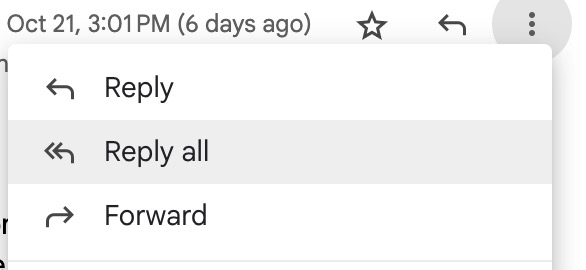
Use the three-second rule. Before hitting Reply All, ask yourself: Does everyone on this thread need to see my response?
- If yes → Reply All
- If no → Reply (to specific people only)
- If unsure → Reply (you can always follow up with others separately)
If your message only matters to one or two people on the thread, don’t Reply All. Everyone else will thank you.
Most email clients let you change the default reply behavior:
- Gmail (Settings → General → Default reply behavior)
- Outlook (File → Options → Mail → Replies and forwards)
- Apple Mail (Mail → Settings → Composing)
You can set Reply as your default instead of Reply All. This forces you to consciously choose Reply All when needed, reducing accidental group spam.

Bonus Tip: Smart Use of Cc and Bcc
Cc (Carbon Copy) is for people who need visibility but aren’t the primary recipient—like looping in your manager on a client update. Everyone can see who’s CC’d, and they’ll get Reply All responses too.
Bcc (Blind Carbon Copy) hides recipients from each other. Use it to protect privacy when sending group announcements (like newsletters to 50 clients) or to gracefully remove someone from a thread while letting them see your final message. Don’t use Bcc to secretly monitor conversations—if someone discovers they were copied without others knowing, it damages trust.
#6: Sharing Sensitive Information in Email Communication
You forward an email thread to a new vendor. Three seconds after hitting send, you remember: buried in message #17 is your internal pricing structure, a customer’s personal contact information, and a candid assessment of their budget constraints. This basic email etiquette mistake just became a security breach.
It’s too late. The vendor has it all now.
Why This Hurts Your Business
Long email threads are security nightmares. When you forward a thread, you’re forwarding everything—all 40 messages, not just the latest one. Buried in there might be customer phone numbers, internal profit margins, candid feedback about team members, or strategic plans you’d never intentionally share.
One careless forward and sensitive information is out in the world, potentially violating NDAs, privacy laws, or damaging business relationships permanently.
The Fix: Thread Security Checklist
Before forwarding any thread:
- Scroll through the entire thread—don’t just read the last message
- Look for red flags: customer contact info, pricing discussions, internal assessments, confidential details
- When in doubt, don’t forward—copy and paste only the relevant info into a fresh email
What never goes in email threads:
- Passwords or login credentials
- Financial details (SSN, credit cards, bank accounts)
- Candid assessments of clients and customers
- Internal pricing strategies or profit margins
- Personal information covered by privacy laws
- Anything covered by an NDA
When to take email conversations offline when discussing:
- Pricing negotiations
- Performance issues or personnel matters
- Customer concerns or complaints
- Legal matters
Email creates a permanent, forwardable record. If you wouldn’t want it read in court or posted publicly, don’t put it in email.
#7: Not Collapsing Read Messages
You open your inbox and see 47 messages staring back at you. Your brain immediately goes into overwhelm mode. Half of those messages are already read—you don’t need to see them again.
While some email clients collapse read messages by default and others don’t, the key is making sure your inbox only highlights what actually needs your attention. If you’re visually processing information you’ve already dealt with every time you check email, it’s time to optimize your view settings.
Why This Hurts Your Business
Your inbox looks overwhelming even when it’s not. When every message stays expanded after you read it, your inbox becomes a wall of text. You’ve got 47 messages visible, but only 12 are actually unread. Your brain can’t tell the difference at a glance.
You miss urgent messages in the noise. A customer sends a time-sensitive question while you’re in meetings. By the time you check email, it’s buried under 15 expanded messages you already read this morning. You don’t see it until three hours later. They needed an answer in one hour.
Visual overload kills productivity. Every expanded message competes for your attention. Your brain has to scan, assess, and dismiss each one—even the ones you’ve already dealt with.
The Fix: Optimize Your Threading View
Collapsing read messages means your email client automatically minimizes messages you’ve already opened, showing only unread messages prominently. Your inbox becomes instantly scannable.
Gmail
- Use Priority Inbox: Settings → Inbox → Select Priority Inbox or Multiple Inboxes
- Filter to unread only: Type is:unread in the search box
- Mobile: Switch to Priority Inbox (Settings → Inbox type) or use the Unread filter
Outlook
- Desktop: View tab → View Settings → Other Settings → Check “AutoPreview: Only display when messages are unread” → OK
- Web: Settings → Search “reading pane” → Toggle “Mark items as read: When selection changes”
- Mobile: Tap filter icon → Select Unread
Apple Mail
- Mac: Create a Smart Mailbox (Mailbox → New Smart Mailbox → Set condition: Message is unread)
- iOS: Tap Mailboxes → Edit → Enable Unread mailbox
The Simple Alternative: Archive Aggressively
Read it, then archive it immediately. Don’t leave read messages in your inbox. Your inbox becomes a to-do list of only unread items.
- Gmail: Press “E” or click Archive
- Outlook: Press “Backspace” (moves to Archive folder)
- Apple Mail: Swipe left, tap Archive
Messages aren’t deleted—just moved out of your inbox. You can still search and find them anytime.
Quick Wins:
Use 3-5 folders max (Urgent, Waiting on Reply, Reference, Archived)
Auto-filter newsletters with rules to auto-label or archive promotional emails
Check email at set times—process everything in batches 3-4 times daily
Mobile: Use unread filter religiously
Your Email Thread Action Plan
| Timeframe | Action |
| This Week | Enable conversation view in your email client |
| Use the subject line formula: [Customer/Project] – [Topic] | |
| Audit your five longest email threads and start fresh where needed | |
| This Month | Set a 15-20 message limit before starting new threads |
| Create a Cc/Bcc policy for your team | |
| Start a weekly five-minute inbox cleanup (every Friday) | |
| Long-Term | Switch to professional email marketing platform like SiteGround |
| Set up email tools that integrate with your hosting |
Stop Losing Time and Customers: Master Email Threads Today
Email threading seems like a small detail until it costs you a customer or hours of wasted time every week. But here’s the good news: every problem we covered has a straightforward fix that takes minutes to implement. You don’t need to overhaul everything today. Start with one change: turn on conversation view, write better subject lines, or commit to one-thread-one-topic.
That single fix will save you time immediately and compound over weeks. And if you’re ready to elevate your entire email setup—searchable subject lines, organized conversations, plus the reliability of custom domain addresses and professional delivery—SiteGround’s business email hosting gives you the complete foundation that free services can’t match.






Comments ( 0 )
Thanks! Your comment will be held for moderation and will be shortly published, if it is related to this blog article. Comments for support inquiries or issues will not be published, if you have such please report it through our official channels of communication.
Leave a comment
Thanks! Your comment will be held for moderation and will be shortly published, if it is related to this blog article. Comments for support inquiries or issues will not be published, if you have such please report it through our official channels of communication.