WordPress backups: Why daily backups may not be enough for your live site

Most websites have some form of backup system in place. A hosting provider runs daily snapshots, or a backup plugin handles scheduled exports. The box is checked, and the assumption is that if something breaks, there’s a recent copy to fall back on.
But “having backups” and “being protected” aren’t the same thing.
Key takeaways:
- Having backups doesn’t equal protection. What matters is how recent and complete your last backup is, and how easily you can restore it.
- Daily backups can still mean hours of lost data (orders, forms, content) on active sites.
- A full backup must include both files and the database, captured at the same time.
- The data loss window (time since the last backup) determines how much you lose during a restore.
- Backup reliability also depends on off-site storage, retention, and ease of use—not just frequency.
- Sites with frequent changes (ecommerce, user data, active content) often need hourly backups.
This article breaks down:
- what a WordPress backup actually covers,
- how the gap between your most recent backup timestamp and the present creates real exposure,
- and how to evaluate whether your current setup matches the risk your site carries.
The backup principles covered here apply to any database-driven site or CMS, not just WordPress.
We’re using WordPress as the framework because it powers over 40% of the web and is the most common context where these decisions come up.
What happens when your backup isn’t recent enough
Let’s imagine the following scenario:
It’s 4 PM on a Tuesday. A plugin update on your WooCommerce store goes wrong and the checkout flow breaks. You catch it within the hour and decide to restore from backup.
Your last backup was created at 6 AM. That’s 10 hours ago.
The restore works and the site is back online. But everything that happened between 6 AM and 4 PM is gone.
Every order, every form submission, every customer account created, every content edit your team made. All of it rolled back to the state your site was in before the workday started.
The backup didn’t fail. It restored your site to the most recent snapshot available. The problem is that the snapshot was 10 hours old, and your site didn’t stand still during those 10 hours.
This is the gap most site owners don’t think about. Daily backups are standard with good hosting providers, and they work well as a safety net for a wide range of situations.
But for sites that process transactions, collect user data, or publish content throughout the day, the distance between the last backup and the moment something breaks is the difference between a clean recovery and hours of data loss. These can be orders that exist only in a customer’s email confirmation, form submissions with no other record, or any other content that has to be recreated from memory.
The question worth asking isn’t whether you have backups. It’s whether your backup frequency matches the pace at which your site actually changes.
What a WordPress backup actually includes
A WordPress site is made up of two distinct layers, and both are required for a working restore.
- Site files: everything stored in the website root directory on your web server. This includes WordPress core files (wp-admin, wp-includes), themes and plugins inside the wp-content folder, uploaded media files, and configuration files like wp-config.php and .htaccess.
- The database: where your actual content lives. Posts, pages, comments, WooCommerce orders, user accounts, plugin settings, and site configuration. Every piece of dynamic data your site generates is stored here.
These two layers are separate. Your WordPress files sit on the hosting server’s filesystem; your database runs on a database server. Backing up one without the other leaves you with an incomplete recovery path:
– Files without the database give you a shell: your theme, plugins, and uploads, but no content, no settings, no user data.
– The database without files gives you all your content and data, but no theme to render it, no plugins to extend functionality, and no media to display.
A complete backup requires both your website files and the database, captured at the same point in time. A file backup from Monday paired with a database backup from Wednesday creates inconsistencies that can break a site just as effectively as the problem you’re trying to recover from.
How automatic backups work on a live site
Most hosting providers run automatic backups on a schedule, typically once per day during off-peak hours. The backup process creates a snapshot of your entire site at that moment: every file and the full database, captured as a single restore point.
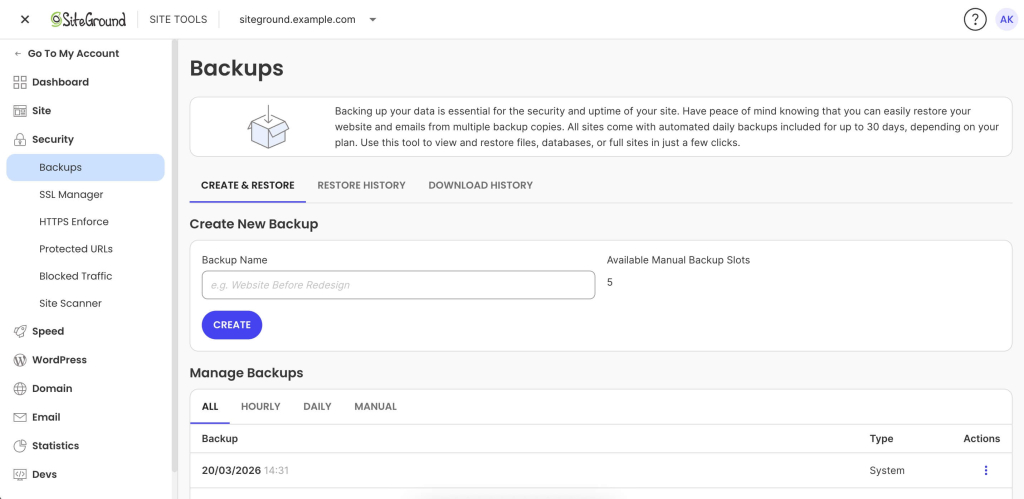
If you are running a simple brochure-site that does not get updated often, and has no dynamic elements, this may be sufficient.
However, if you are running a high-traffic, dynamic site, it most likely keeps changing between snapshots. New orders, published content, plugin updates, form submissions, account registrations are not going to be saved in your last backup. It only gets captured when the next scheduled run completes.
This creates what’s sometimes called a data loss window. This is the gap between your most recent backup and the present moment. If you restore right now, everything that changed since the last snapshot is gone. On a quiet site, that gap might not matter. On a site with active traffic and transactions, it can represent hours of irrecoverable data.
Keep reading to understand how to evaluate your current backup system for such risks.
What changes between backups on a live site
The size of your data loss window depends entirely on how active your site is. On a live WordPress site, here’s what can accumulate between one backup and the next:
– Blog posts published, edited, or scheduled
– WooCommerce orders processed and inventory levels updated
– Form submissions: contact forms, quote requests, lead generation
– Plugin or theme updates applied (manually or via auto-updates)
– New customer account registrations and profile changes
– Comment activity across the site
A portfolio site updated once a week has a narrow gap. A WooCommerce store processing dozens of orders per day has a wide one. The more active the site, the more the question shifts from “do I have backups?” to “how recent is my last backup?”
The data loss window: real restore scenarios
The following scenarios aren’t hypothetical edge cases. They’re common failure patterns on live websites.
A broken plugin update on an ecommerce site
Similar to the example we gave above and very common: a WooCommerce plugin pushes an update at 2 PM. It introduces a conflict that crashes the checkout flow. You catch the issue by 3 PM and decide to restore.
With a daily backup from 6 AM, you roll back 8–9 hours. Every order placed that day is gone. Inventory levels revert. Customer accounts created during that window vanish. You’re left reconciling lost transactions from payment gateway records and accepting that some data no longer exists.
Malware injected and discovered late
Your site gets infected through a vulnerability in an outdated plugin. The malware is subtle: redirecting a small percentage of visitors to a phishing page, injecting spam links only search engines see, or adding a backdoor. You were on vacation and did not notice it for a week.
This is where retention depth matters as much as frequency.
Let’s assume you are on a hosting plan where you have seven restore points, going seven days back. If the infection is older than a week, every available backup is compromised and you’re facing a manual cleanup with no clean baseline.
With 30 days of retention (standard on SiteGround shared hosting), you can step back through the last month to find a clean snapshot from before the infection, even if you didn’t catch the problem quickly.
Accidental content deletion on a high-traffic site
This happens more often than you’d think. For example, a team member reorganizes pages in the dashboard mid-morning and accidentally deletes a high-performing landing page. Nobody notices until end-of-day traffic reports show an unexplained drop.
With a daily backup from the previous night, the page is recoverable. But restoring a full site backup to get one page back means rolling back everything else: new content, updated products, orders, form submissions. You recover the page but lose a day’s worth of work across the rest of the site.
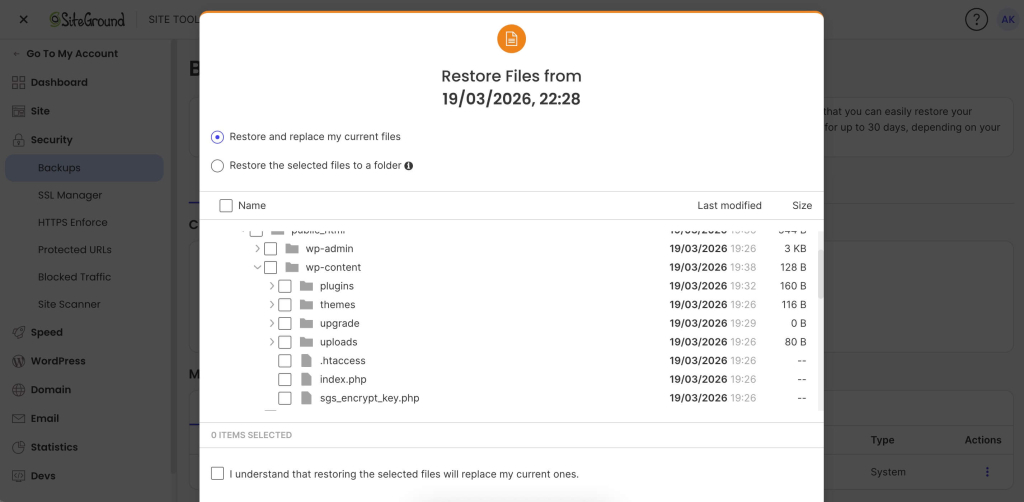
This is where the ability to restore specific components matters.
SiteGround’s restore process allows restoring specific files, databases, or both independently, so you can do a partial restore without forcing a full-site rollback.
Daily vs. hourly WordPress backups: which do you need?
There’s no universal backup frequency that works for every site. The right answer depends on how your website is used, how often it changes, and how much data you can afford to lose.
When daily backups are enough
For relatively static sites like portfolios, brochure sites, blogs that publish once or twice a week, daily backups provide solid coverage. The data between scheduled backups is small and easy to recreate.
Daily backups are generally sufficient when:
– There are no ecommerce transactions or user-generated content to protect
– Content changes are infrequent and can be manually recreated if needed
– The acceptable data loss window is a full 24 hours
If this is your site, the priority shifts to making sure backups are stored off-site and that retention depth is sufficient for issues that aren’t caught immediately.
When you may need more frequent backups
This changes quickly when your site generates data that can’t be recreated:
– The site processes transactions: orders, membership signups, bookings, or payments
– Multiple contributors are making content changes throughout the day
– The site collects form submissions, user registrations, or comments at volume
– Any amount of downtime or data loss has a direct revenue impact
In these cases, the acceptable window shrinks from 24 hours to a few hours or less. Hourly backups become a practical necessity.
Questions to ask yourself
– If my site broke right now, when was my last backup?
– How much data would I lose between that backup and this moment?
– Could I manually recreate what’s lost, or is it gone forever?
– How long can my site be down before it costs me money or erodes trust?
The answers don’t require a technical background. They require an honest look at how your site is used and what is at stake.
What SiteGround covers by default, and when to upgrade
SiteGround shared hosting includes 30 daily automatic backups, stored in a geographically separate location, with easy partial restores and one-click full rollback through Site Tools. For many websites, this provides strong baseline coverage with enough retention to handle most recovery scenarios.
For active ecommerce stores, agencies managing client sites, or high-traffic content operations, Premium Backups adds hourly snapshots retained for 48 hours alongside the existing daily retention, plus downloadable backup copies for an independent recovery path.

The upgrade decision maps directly to the framework above:
If your acceptable data loss window is measured in hours rather than days → hourly backups are a straightforward, risk-based investment.
What makes a backup strategy actually reliable
How often you back up your site gets most of the attention, but it’s only one dimension.
Storage location
If your backup files sit on the same server as your live site, a single server failure destroys both. Backups hosted in the same datacenter, while better than same-server backups, also involve risk: a datacenter-level incident can still take out everything.
Off-site storage is the baseline. Storing backups on geo-distributed infrastructure, in a physically separate location from your hosting server, is the gold standard.
SiteGround’s backup system is entirely geo-distributed and included without any additional charges for all sites, on all hosting plans.
Retention depth
Frequency decides how recent your latest restore point is. Retention decides how far back you can go.
This distinction matters most when problems aren’t immediately obvious: malware that sits undetected for days, a configuration change that causes subtle issues over time, or content deleted and only noticed later. In each case, you need to step back through multiple restore points. Shallow retention eliminates that option.
SiteGround shared hosting retains 30 daily copies. Premium Backups adds hourly snapshots retained for 48 hours on top of that. The combination gives you granularity for recent issues and depth for problems that surface later.
Restore speed and simplicity
A backup is only as useful as your ability to restore from it under pressure. When your site is down and customers can’t complete purchases, the restore process needs to be fast, not a multi-step manual operation involving FTP clients, database imports, and file permission fixes.
Trying to manually restore a WordPress site can take hours, requires technical confidence, and introduces the risk of human error at exactly the moment you can least afford it.
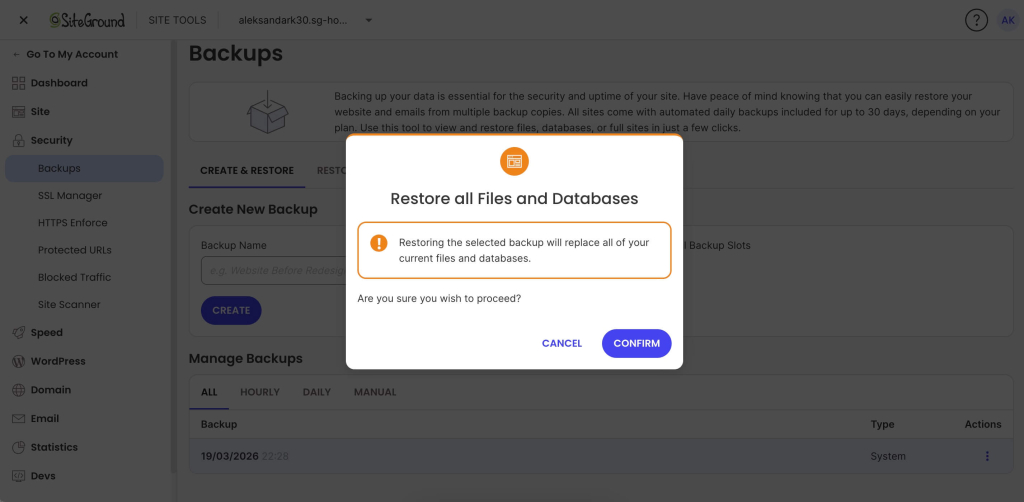
A hosting-level restore that takes a few clicks and runs in minutes changes the recovery experience entirely. For example, SiteGround’s restore in Site Tools lets you select a restore point, choose files, database, or both, and the system handles the rest.
Downloadable backups
Hosting-level site backups cover the vast majority of recovery scenarios. But a downloadable copy gives you independence: a backup file that exists entirely outside your hosting environment. This is useful for:
– Migration to a new hosting provider
– Local development and testing with a production copy
– Redundancy for users who want a copy they fully control
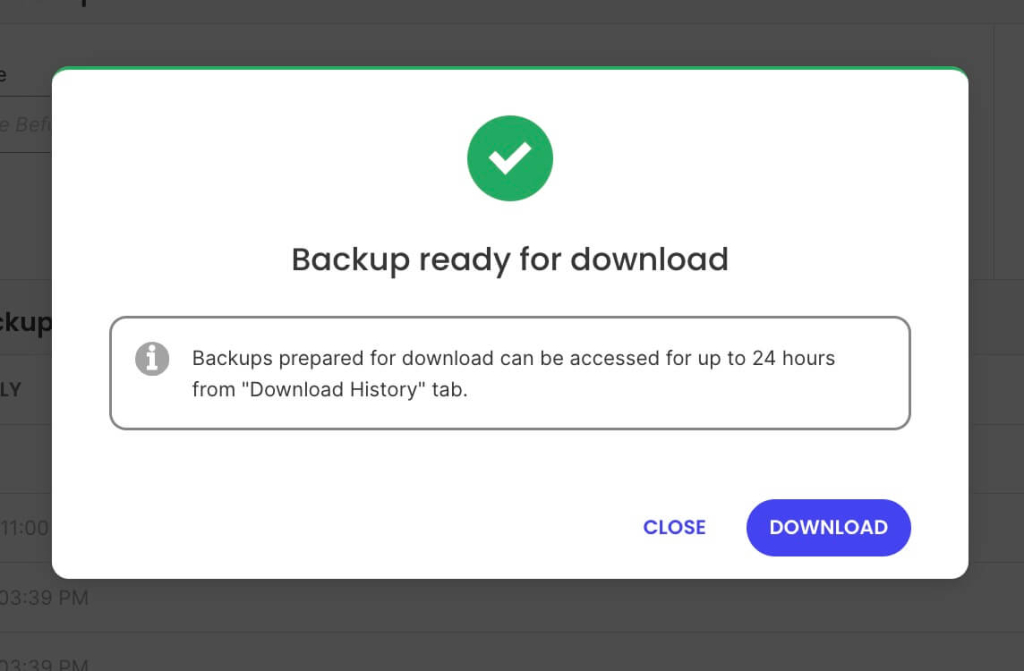
SiteGround’s Premium Backup service includes full backups as a single-click download inside Site Tools. You can get a full copy of your website on your device at any time, without paid third-party WordPress plugins or manual export processes.
How to evaluate your current backup setup
Everything above is practical only if you know where your own site stands. This is a self-assessment you can run in a few minutes, no technical expertise required.
Do a quick backup audit
Go to your hosting account and find the backup section. (If there isn’t one or you can’t find it easily, switch to another provider NOW.)
The main things you should check are:
- How many hours of data sit between your last backup and now?
- If you restored that backup right now, what would you lose — and can any of it be recreated?
- Are your backups stored on the same server as your live site, or in a separate location?
- How many restore points do you have access to? (One recent backup isn’t the same as 30 days of daily snapshots.)
- Have you ever tested a restore?
That last point is the most overlooked step in any backup strategy. Backups can fail silently: corrupted snapshots, incomplete captures, storage issues that go unnoticed until the moment you need to restore.
Consider restoring to a staging site to verify the backup process works before you need it under real pressure. A backup you’ve never tested is a backup you’re trusting on faith.
What to do based on what you find
If your daily backup coverage matches your site’s risk profile (low activity, no transactions, easy-to-recreate content), you’re in a solid position. Make sure to verify your host is using off-site storage and also offers sufficient retention depth.
If the gap between your last backup and right now represents hours of data you can’t afford to lose, it’s worth considering hourly backups.
Either way, the single most valuable step is testing a restore at least once. Know the process before it’s urgent. Understand how long it takes, what options you have, and what the result looks like. That knowledge turns a backup from a line item on a features list into an actual recovery plan.
The bottom line
Having backups is not the same as being protected. The distance between your last backup and the present moment is where data disappears, and for active dynamic sites, that distance is measured in hours, not days.
Evaluate your site based on what you’d actually lose if you had to restore right now, not on whether backups exist somewhere in the background.
Test your restores, understand your retention, and make sure your backup frequency matches the real pace of change on your site. That’s the difference between a checkbox and a recovery plan.
If that audit reveals gaps your current host can’t close (shallow retention, no off-site storage, no granular restore options), it may be worth evaluating a hosting provider where backups are built into the infrastructure from the start.
FAQ
WordPress does not include a built-in backup system. Its autosave feature periodically saves post and page drafts while you’re editing, but that only covers individual content items. It doesn’t capture your WordPress database, plugins, themes, uploaded media files, or site configuration.
For site-level backups, you need either a hosting provider that includes automatic backups, a dedicated backup plugin or manual exports.
It depends on how your backups are created.
If your hosting provider handles backups, you’ll find them in your hosting control panel. On SiteGround, that’s Site Tools → Security → Backups, where you can manage all backup features.
If you use a backup plugin like UpdraftPlus or Duplicator, backups are managed from the plugin settings inside your WordPress dashboard. If you’ve configured remote storage, such as Google Drive, Dropbox, or a cloud storage service like Amazon S3, your backup files will also be stored in whichever service you connected during setup.
A full backup requires both your site files and your database. The file layer includes WordPress core files, themes, plugins, and everything inside the wp-content folder, including all uploaded media. The WordPress database contains posts, pages, comments, orders, user accounts, plugin settings, and site configuration.
Good hosting providers handle this automatically. SiteGround creates full site backups daily, capturing both files and database in a single snapshot. Paid third-party plugins can also create a complete backup and store it in a remote storage location of your choice.







Comments ( 0 )
Thanks! Your comment will be held for moderation and will be shortly published, if it is related to this blog article. Comments for support inquiries or issues will not be published, if you have such please report it through our official channels of communication.
Leave a comment
Thanks! Your comment will be held for moderation and will be shortly published, if it is related to this blog article. Comments for support inquiries or issues will not be published, if you have such please report it through our official channels of communication.